
How to factory reset Philips Hue lights
What is a factory reset?
Factory resetting your Philips Hue bulb, fixture, or lamp will restore its original settings, erasing all your customized settings and data, so that it can be easily added to another Bridge or Bluetooth setup.
When should I factory reset a Philips Hue light?
Factory resetting your Philips Hue light can be a useful step to take if you are experiencing issues when trying to add it to your lighting system, or if you are planning to return, sell, or give away your lights.
There are several different ways that you can factory reset your Philips Hue lights:
1. Using the light’s serial number:
The serial number of a Philips Hue light is usually printed on the light itself or, in some cases, on a tag on the cord. The serial number is a six-digit code that can contain numbers or letters.

- Open the app and go to Settings.
- Select Lights and press the blue plus (+) button.
- Select Use serial number, enter the six-digit code, tap the blue plus (+) button, and tap Search. Note that the serial number consists of six characters: a number between 0 and 9 or a letter between A and F.
Additionally, there will never be a letter O in a serial number — it will always be the number 0. - The light will flash, indicating it’s been reset, and appear in the Philips Hue app.

2. Using the Philips Hue app connected to a Bridge:
This option can only be used when you already have the Philips Hue light in your app and it’s working without any issues.
- Open the app and go to Settings.
- Select Lights and choose the light you want to reset.
- Tap Delete and follow the on-screen instructions.
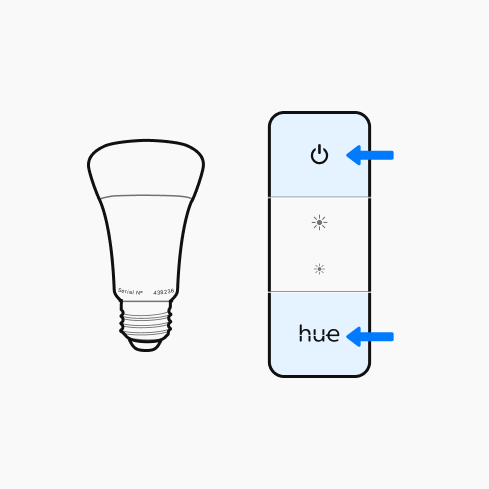
3. Using a Philips Hue dimmer switch:
For this option, you’ll need to have a Philips Hue dimmer switch.
- Disconnect the light from power, and connect it again. You can factory reset the light within 30 minutes of it being powered off and back on.
- Press and hold the top and bottom buttons simultaneously for at least 10 seconds while holding the dimmer switch nearby the light.
- Release the buttons after the light flashes.
4. Using a Philips Hue Tap dial switch:
For this option, you need to have a Philips Hue Tap Dial switch.
- Turn the light off and back on using the wall switch or power source. The reset must be performed within 30 minutes after the light is powered back on.
- Bring the Hue Tap Dial switch close to the light you want to reset.
- Press and hold Button 1 (.) and Button 4 (::) on the Tap Dial switch at the same time for at least 10 seconds.
- When the light flashes, release both buttons.
The light has now been reset to its factory settings and can be added to your Hue system again.
5. Using the Philips Hue app in Bluetooth mode:
Use the following option if you do not have a Bridge, dimmer switch, or Tap dial switch
- In the app, go to Settings and tap Lights.
- Tap Add lights.
- Follow the on-screen instructions to add the light you want to reset.
- Go to Settings and tap Lights.
- Tap the light you want to reset.
- Tap Reset.

Important Note: Factory resetting your Philips Hue lights will erase all personal settings and data, so make sure to only do this if it’s necessary. If you’re experiencing issues with your Philips Hue lights, first try troubleshooting before factory resetting. If you’re planning to return, sell, or give away your lights, make sure to factory reset them to protect your personal information and make it easier for the new user to add it to their system.