A TV in a modern living room, illuminated by Hue Play wall washer and Play lamps, which sync with the screen content to create an immersive and dynamic entertainment experience.

Hue Sync for Apple TV: transform your home cinema experience

August 25, 2026


Set up Hue Sync with Apple TV to elevate your home entertainment from a standard viewing session to a fully immersive sensory experience. By bridging the gap between your screen and your room, this setup allows your smart lighting to react in real-time to every explosion, sunset, or musical beat. Whether you're watching the latest blockbuster or playing a fast-paced game on Apple Arcade, the Philips Hue sync box Apple TV integration ensures your space reflects the world on your television.

 

What you need for your Hue Sync Apple TV setup

To create an immersive Apple TV lighting experience, you'll need a few core components working together:

Choose your sync method

Philips Hue Play screen sync

Play screen sync is a dedicated screen sync device that uses a fisheye lens to analyze the colors, movement, and intensity of content displayed on your TV screen in real time. Because it reads what's happening directly on the screen, it works seamlessly with Apple TV and other content sources connected to your television.
A Philips Hue Play screen sync device with fisheye lens attached on a TV and detecting the on-screen content.

Philips Hue Play HDMI sync box 4K

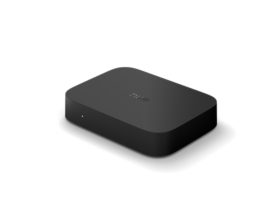
The Play HDMI sync box 4K sits between your Apple TV and your television, syncing compatible Hue lights with HDMI-connected content. It supports crisp 4K resolution at up to 60Hz refresh rate, making it ideal for streaming, movies, sports, and everyday gaming.

Philips Hue Play HDMI sync box 8K

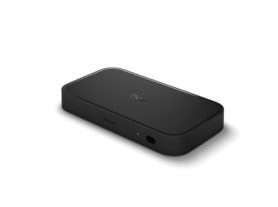
For advanced home theaters and next-generation gaming setups, the Play HDMI sync box 8K supports HDMI 2.1, 8K at 60Hz, and 4K at up to 120Hz while delivering responsive light synchronization.

Apple TV (HD or 4K)

All modern Apple TV models are compatible with Philips Hue entertainment setups.

Philips Hue Bridge or Bridge Pro

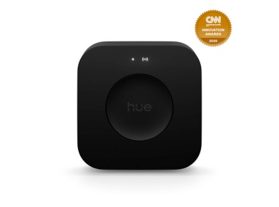
A Philips Hue Bridge or Hue Bridge Pro is required to create an Entertainment area and unlock immersive synchronization with up to 10 color-capable Hue lights.

Color-capable Philips Hue lights

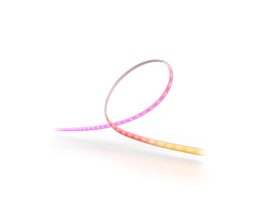
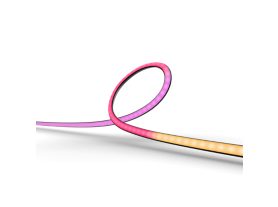
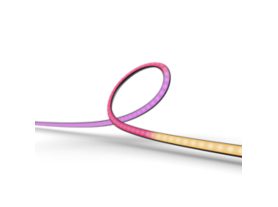
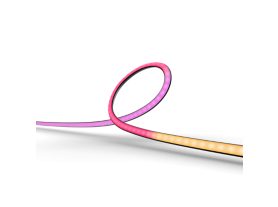
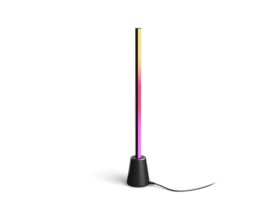
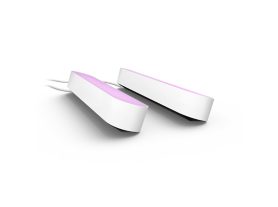
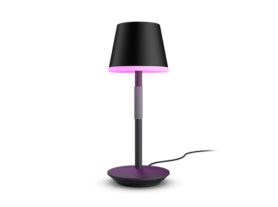
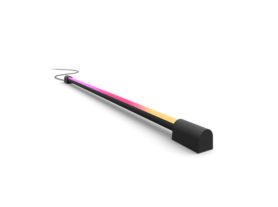
For the most immersive experience, use color-capable lights such as Play gradient strip lights, Play gradient strip light pro, Play light bars, Signe gradient lamps, or Play wall washer lights.


Smart lighting gear for your Hue sync setup

Halloween Sale: Buy 2+, Save 30%
Philips Hue Play screen sync
Halloween Sale: Buy 2+, Save 30%
Philips Hue Play HDMI sync box 4K
Coming Soon
Philips Hue Play gradient strip light 85"
Coming Soon
Philips Hue Play gradient strip light pro 65"
Halloween Sale: Buy 2+, Save 30%
Bridge Pro

Bridge Pro

$139.99

Halloween Sale: Buy 2+, Save 30%
Philips Hue Play HDMI sync box 8K
Coming Soon
Philips Hue Play gradient strip light pro 100"
Play gradient lightstrip 55 inch

Play gradient lightstrip 55 inch

$274.99

Temporarily out of stock

Play gradient lightstrip 65 inch

Play gradient lightstrip 65 inch

$296.99

Temporarily out of stock

Halloween Sale: Buy 2+, Save 30%
Play gradient lightstrip 75 inch
Halloween Sale: Buy 2+, Save 30%
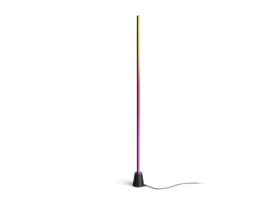
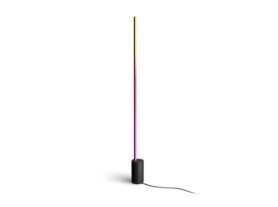
Hue Play Floor lamp large
Halloween Sale: Buy 2+, Save 30%
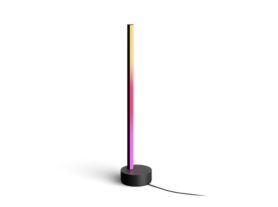
Hue Play Table lamp
Halloween Sale: Buy 2+, Save 30%
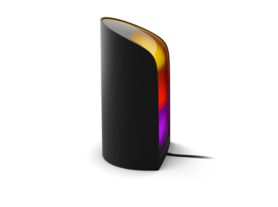
Hue Play wall washer

Discover the Hue lighting control and LED strip lights collection.

Step 1: Create an Entertainment area

Before syncing your lights with Apple TV, open the Philips Hue app and create an Entertainment area. This allows you to position your lights virtually so they can accurately react to the action on screen.

Once your Entertainment area is configured, you'll use the Sync tab in the Hue app to start and manage synchronization.

Want to sync your lights to Apple Music on Apple TV? Simply switch to Music mode in the Sync tab to create a dynamic lighting experience that reacts to the rhythm and energy of your music.

Couple watching Apple TV with Philips Hue entertainment lighting synchronized to the content on screen, creating an immersive home theater experience.

Step 2: Connect Apple TV to your Hue sync setup

The setup process depends on which sync solution you choose.

Using Play screen sync

Position the Play screen sync device according to the setup instructions and complete configuration in the Hue app. Once configured, simply start syncing from the Sync tab and launch Apple TV content.

Using Play HDMI sync box 4K or 8K

1. Connect Apple TV to one of the HDMI inputs on the sync box.
2. Connect the sync box output to your TV.
3. Complete setup in the Hue app.
4. Enable automatic syncing options if desired.
5. Open Apple TV and start watching.

A Philips Hue Play sync box 4k placed on an entertainment setup in front of a TV.

Both sync boxes support Apple TV content, including movies, shows, sports, and Apple Arcade gaming.

Explore the Hue sync with TV options


Expand your Hue entertainment setup

Halloween Sale: Buy 2+, Save 30%
Hue Play Floor lamp large
Halloween Sale: Buy 2+, Save 30%
Hue Play Table lamp
Halloween Sale: Buy 2+, Save 30%
Bridge Pro

Bridge Pro

$139.99

Halloween Sale: Buy 2+, Save 30%
Signe gradient table lamp
Halloween Sale: Buy 2+, Save 30%
Signe gradient floor lamp
Halloween Sale: Buy 2+, Save 30%
Hue Play wall washer
Halloween Sale: Buy 2+, Save 30%
Play light bar double pack

Play light bar double pack

$189.99

Only a few left

Halloween Sale: Buy 2+, Save 30%
Hue Go portable table lamp
Halloween Sale: Buy 2+, Save 30%
Play gradient light tube compact
Halloween Sale: Buy 2+, Save 30%
Play gradient light tube large
Halloween Sale: Buy 2+, Save 30%
Hue Go portable table lamp
Halloween Sale: Buy 2+, Save 30%
Signe gradient table lamp
Halloween Sale: Buy 2+, Save 30%
Signe gradient floor lamp
Halloween Sale: Buy 2+, Save 30%
Bloom table lamp

Discover the Hue floor lamps and table lamps collections.


Advanced optimization: intensity and voice control

To truly master your Philips Hue sync box Apple TV setup, experiment with different synchronization intensity levels. "Subtle" is perfect for slower-paced dramas and documentaries, while more intense settings can make action movies, sports, and Apple Arcade gaming feel even more immersive.

Because Philips Hue works with Apple HomeKit, you can use Siri to control your lighting without leaving the couch. Adjust brightness, activate scenes, or set the perfect mood before you start watching. Create dedicated entertainment scenes in the Hue app, then launch them instantly through the Apple Home app or with Siri voice commands.