Philips Hue dimmer switch installation - Hand pressing a button on a Hue labeled white dimmer switch

Install Philips Hue dimmer switch: The ultimate guide to smart control

May 14, 2026

Ready to install your Philips Hue dimmer switch? 

One of the greatest benefits of Philips Hue smart lighting is the versatility it offers. While you can easily control your lights with the Hue app or your voice via a smart home assistant, sometimes you want the tactile convenience of a physical controller. Whether you are looking to create the perfect ambiance for a movie night or need a quick way to brighten the kitchen for meal prep, adding a wireless smart switch provides an extra layer of intuitive control for everyone in the home.

Learning how to install a dimmer switch is remarkably simple and pairing it with your smart lighting setup requires very few steps: it’s an easy, intuitive process created so that anyone can complete it without an electrician.
How to install a dimmer switch

Unlike traditional dimming solutions that require you to turn off circuit breakers and handle complex electrical wiring, the Philips Hue dimmer switch is 100% wireless and battery-powered. This means you can mount it anywhere in your home — beside your bed for nighttime control, near your favorite reading chair, or at any room entrance — without ever touching a wire.

Benefits of smart dimming and wireless control

When you choose to install a Philips Hue dimmer switch, you’re doing more than just adding a remote.

  • Energy efficiency: Dimming your lights to 50% can reduce energy consumption by up to 40%, helping you save on electricity bills while extending the life of your bulbs.

  • Circadian support: Pair your switch with Hue’s natural light scenes to support healthier sleep patterns by adjusting brightness and color temperature throughout the day.

  • Versatile placement: The magnetic base plate can be attached to any metal surface, or you can use the included adhesive to place it on any wall. 

Hue light switches and controls

25% off with code GOAL25
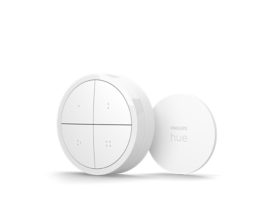
Dimmer Switch (latest model)
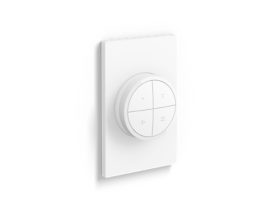
Tap dial switch

Tap dial switch

$54.99

Temporarily out of stock

25% off with code GOAL25
Hue Tap Switch Mini White
25% off with code GOAL25
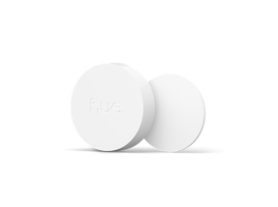
Smart button
25% off with code GOAL25
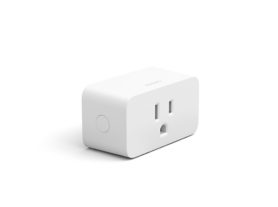
Smart plug
25% off with code GOAL25
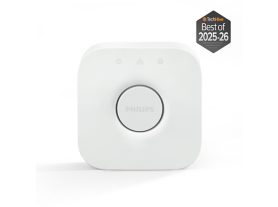
Bridge

Bridge

$69.99

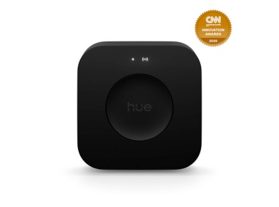
Bridge Pro

Bridge Pro

$139.99

Explore the Hue lighting controls collection

Dimmer switch installation instructions

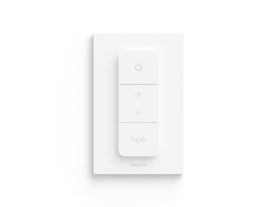
Follow these dimmer switch installation instructions to get your system running in minutes. The Philips Hue dimmer switch consists of two parts: the remote itself and the wall plate.

Step 1: Find the ideal spot for your dimmer

Because it is wireless, the "perfect spot" is wherever you find yourself reaching for a light switch. Popular locations include next to the sofa, on a nightstand, or replacing an existing traditional switch.

Step 2: Mount with adhesive or screws

The dimmer switch can be mounted two ways:

  1. Adhesive: Use the pre-applied adhesive strips on the back of the base plate to stick it to any flat surface.
  2. Screws: The base plate can also be screwed directly into a wall or a standard single-gang wall box (screws not included).

Step 3: Connect to your Hue smart lighting

Once mounted, pull the plastic battery tab out of the remote. You will see a blinking LED, indicating it is ready to pair.

How to install a dimmer switch with the Hue app

While you can pair a dimmer switch directly to a bulb, using the Philips Hue app unlocks the full potential of your smart home.

  1. Open the Philips Hue app.
  2. Navigate to Settings > Accessories.
  3. Tap the plus (+) icon.
  4. Select Hue dimmer switch and follow the on-screen instructions.

If you are using a Hue Bridge, your switch will now support advanced features like Matter protocol compatibility, allowing it to work seamlessly with Apple Home, Google Home, and Amazon Alexa.

Pro-tip: Creating automated routines

You can program each of the four buttons on your dimmer switch to trigger specific scenes. For example, the "On" button can be set to cycle through different scenes (Bright, Read, Relax) with multiple presses, while the "Hue" button can be customized to activate your favorite color palette.

Philips Hue dimmer switch troubleshooting

If your switch isn't responding as expected, don't worry. Most connectivity issues have simple fixes.

Troubleshooting connection issues

  • Range: Ensure your switch is within 30-40 feet of your Hue Bridge or the nearest Hue bulb. The Hue system uses a mesh network where bulbs act as signal repeaters.

  • Soft Reset: If the switch becomes unresponsive, hold all four buttons simultaneously until the LED indicator turns green. This refreshes the connection without deleting your settings.

  • Battery: The CR2450 battery typically lasts about 3 years. The app will notify you when it's time for a replacement.

Factory reset the Philips Hue dimmer switch

If a soft reset doesn't work, you may need a factory reset. Use a small, pointed object (like a paperclip) to press and hold the Setup button on the back for 10 seconds until the LED flashes orange.

Other tips about Hue Dimmer Switch installation

To get the most out of your system, the secret lies not just in where you place the switch, but in how you configure it. A common mistake is treating it as a simple on/off button; however, the Hue Dimmer Switch is actually a sophisticated scene controller.

Understanding the technical capabilities of your Dimmer Switch allows you to design a lighting experience that fits your lifestyle without friction. Here is the essential breakdown of what you need to know for a seamless transition to a smarter home:

How long does it take to install a Philips Hue dimmer switch?

The complete process typically takes 5-10 minutes, including both physical mounting and app configuration.

Do I need a Bridge to use the dimmer switch?

No, you can pair the switch directly to up to 10 bulbs via Zigbee. However, a Hue Bridge is required for advanced features such as app control, routines, and out-of-home access.

Can I control multiple rooms with one switch?

Yes! Through the app, you can assign a dimmer switch to control a single light, a specific zone, or an entire room.

Ready to expand your setup? Explore more about home automation or learn why a starter kit is the best way to grow your smart home ecosystem.