How to connect Hue Bridge to WIFI?
Connecting your Philips Hue Bridge or Hue Bridge Pro to WiFi is the essential first step to unlocking your smart lighting system. Mastering this smart home bridge setup ensures that your lights, sensors, and cameras communicate reliably across your entire home network.
The Bridge acts as the central hub that links all your Hue lights and accessories, allowing you to control them via the Philips Hue app, voice assistants, or automations — from anywhere in the world.
In this guide, we’ll cover everything you need to know to set up your Bridge correctly, understand what each LED indicator means, and ensure your smart home stays reliably connected.
Why you need to connect the Hue Bridge to WiFi
The Hue Bridge connects your lights using Zigbee, a low-latency smart home protocol, and then communicates with your home network via Ethernet and WiFi.
This connection allows you to:
- Control your lights remotely, even when away from home.
- Sync lighting with music, movies, or games.
- Automate routines such as “Wake Up” or “Away Mode.”
- Integrate Hue with Apple HomeKit, Google Assistant, Alexa, and Matter.
Without a WiFi connection, you can only use basic Bluetooth control with limited features.
What you'll need before setup
Preparing your smart home network requirements in advance will make your smart hub installation much faster. Before you begin, ensure you have the following hardware and digital prerequisites ready:
- A Philips Hue Bridge (V2) or Hue Bridge Pro
- The Ethernet cable (included with your Bridge)
- A WiFi router with an available LAN port
- A power outlet near your router
- The Philips Hue app (downloaded from the App Store or Google Play)
Step-by-Step Guide: How to Connect Your Hue Bridge to WiFi
The process for installing a home automation bridge is nearly identical for both the Hue Bridge (V2) and the Hue Bridge Pro. Follow these steps to complete your smart lighting hub setup in minutes:
Step 1 – Plug in the Hue Bridge
- Connect the power adapter to the Bridge and plug it into an outlet.
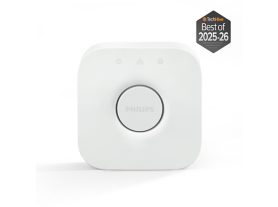
- Wait until the Bridge lights up — you’ll see three LED indicators on the front.
Each LED has a specific meaning:
- Power light (left): Device is on.
- Network light (middle): Connection to router detected.
- Internet light (right): Connection to the internet established.
Step 2 – Connect the Ethernet Cable
- Plug one end of the Ethernet cable into your router.
- Connect the other end to the Ethernet port on the back of the Hue Bridge.
Why a wired connection?
When comparing wired vs. wireless smart hubs, a wired connection is the gold standard for reliability. The Hue Bridge does not connect directly to WiFi; it must be hardwired to your router to function. This Ethernet-to-WiFi bridge setup ensures your lighting system has its own dedicated communication channel, preventing interference with your other wireless devices and ensuring your smart home network remains fast and responsive.
Step 3 – Wait for the LEDs to turn solid
Once all three LEDs on the Bridge turn solid blue, the device has successfully connected to your network.
If any LED keeps blinking, check your cable connections or restart your router.
Step 4 – Set up the Bridge in the Philips Hue App
- Open the Philips Hue app on your smartphone.
- Choose “Set up new Bridge.”
- The app will automatically detect your Bridge on the network.
- Follow the on-screen instructions to complete the pairing process.
You may be prompted to press the round button on top of the Bridge to authorize pairing.
Once setup is complete, your Hue Bridge is now connected to your network, and you can start adding lights, accessories, and automations.
How to connect Hue Bridge Pro to WiFi
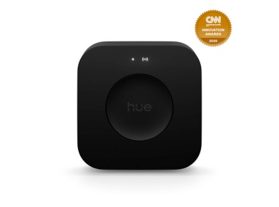
The Hue Bridge Pro setup follows the same physical steps but supports faster performance, advanced Zigbee range, and Matter compatibility.
Pro-specific setup tips
- Connect the Bridge Pro using the included Ethernet cable to ensure a stable connection.
- During setup in the Hue app, you’ll see a Bridge Pro label — select it to enable enhanced features.
- If you’re upgrading from a standard Bridge, use the Migration Tool in the Hue app to transfer your lights and scenes automatically.
Troubleshooting Connection Issues: Fix Your Smart Hub Setup
If your Hue Bridge won’t connect to the internet or your smart home app can't find it, you are likely experiencing a common networking hiccup. Use these smart home troubleshooting steps to restore your connection:
- Check the Ethernet connection: Ensure both ends are fully inserted.
- Restart your router and Bridge: Unplug both devices for 30 seconds and reconnect.
- Disable VPNs or network filters that may block local devices.
- Use a primary LAN port on your router — avoid secondary ports or switches during setup.
- Reset the Bridge: If nothing works, use a paperclip to press the reset button on the back for 5 seconds, then set it up again.
Understanding the Hue Bridge LEDs
LED Indicator | Status | Meaning |
Power | Solid blue | Bridge is powered on |
Network | Solid blue | Connected to router |
Internet | Solid blue | Connected to the internet |
Internet | Blinking | Searching for connection |
All lights off | No power | Check adapter or outlet |
A solid blue light pattern means your Hue Bridge is fully connected and ready to pair with the app.
Final thoughts
Setting up your Philips Hue Bridge or Hue Bridge Pro, your smart lighting hub installation, is quick and simple when following the correct steps.
Although the Bridge connects to your router using an Ethernet cable, it enables full WiFi control through the app and your smart devices — giving you remote access, automation, and integration across your entire smart home ecosystem.
Once connected, you’ll have a reliable and secure foundation for expanding your lighting setup with new rooms, accessories, and routines.