Why is my LED bulb flickering?
Understanding why LED bulb flickering occurs can help you spot early signs that your lighting system isn’t functioning properly — but it’s rarely a serious issue. Whether you’re using a regular LED or a Philips Hue smart bulb, understanding what causes the blinking can help you solve it quickly and prevent future problems.
What causes LED light to flicker (and how to fix them)
| Cause | Explanation | Fix |
Loose physical connection | The bulb isn’t screwed tightly into the socket or the fixture wiring is loose. | Turn off the power and ensure the bulb and fixture are secure. |
Incompatible dimmer switch | Older dimmers designed for incandescent bulbs can cause flickering with LEDs. | Replace your dimmer with an LED-compatible one. |
Voltage fluctuations | Irregular power supply or electrical interference can cause flickering. | Have an electrician check your wiring or stabilize your power line. |
These are the most frequent reasons why non-smart LED bulbs flicker. The fixes are often simple — no need to replace the bulb right away. Explore the advantages of LED lights.
Specific causes for Philips Hue smart LED bulbs flickering
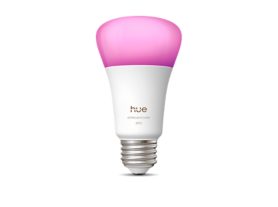
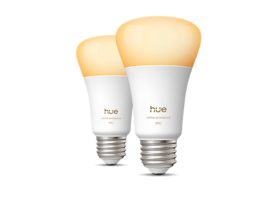
When a Philips Hue bulb blinks, it’s not always about wiring or power. Often, it’s communicating that it has lost connection or is in setup mode.
1. Lost connection to Hue Bridge or WiFi
A blinking Hue bulb may not be properly connected to your Bridge or WiFi network, causing LED bulb to flicker.
Fix:
Check that your Hue Bridge is powered and connected to your router.
Ensure your WiFi network is active and stable.
Open the Hue app and verify that the bulb appears in your device list.
2. Firmware Needs Updating
Outdated firmware can cause bulbs to misbehave or flicker intermittently.
Fix:
Open the Hue app → Settings → Software Update.
Allow all bulbs to update to the latest firmware version.
3. Setup or Reset mode
Some Hue bulbs flash or blink during pairing or when they’re being reset.
Fix:
If blinking occurs after setup, wait a few minutes — it may stop automatically.
- If not, perform a manual reset (usually toggling power on/off 5 times or using the Hue app).
How to prevent flickering long-term
Use certified LED dimmers that are compatible with smart bulbs. Check dimmer switch installation and understand why LED lights flicker with dimmers to ensure proper compatibility.
Keep firmware up to date through the Hue app.
Avoid using Hue bulbs on non-dimmable circuits controlled by mechanical dimmers.
Ensure your Bridge and router are in open areas, not behind thick walls or metal shelves.
Regularly check for loose fixtures or corroded sockets.
When to replace or contact support
If the bulb continues blinking after all troubleshooting steps, it could be a hardware fault.
Try moving the bulb to another socket.
Reset the Bridge and reconnect your Hue system.
If issues persist, contact Philips Hue Support for a replacement — especially if under warranty.
Summary
A blinking Hue bulb is almost always trying to tell you something.
For smart Hue bulbs, it’s often a connection or software issue.
For regular LED bulbs, it’s typically a wiring, dimmer, or voltage problem.
By tightening, updating, or resetting a few things, you can easily stop flickering LED bulbs and enjoy steady, reliable smart lighting again.