How to change GU10 bulb in track lighting?
The GU10 base is a standard for many spotlights and track lighting systems. Performing a GU10 bulb replacement or track light bulb change is a common maintenance task that keeps your lighting working efficiently. While it’s simpler than changing screw-in bulbs, using the correct technique for the GU10 twist lock connection is essential to ensure a safe and secure installation.
Understanding GU10 bulbs
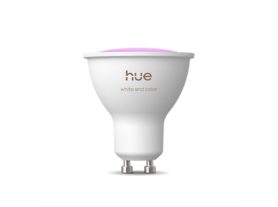
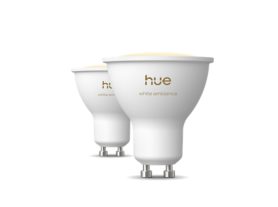
The GU10 bulb is one of the most common types of spotlight bulbs used in modern track lighting. It features two short pins that secure into the socket using a GU10 twist lock mechanism, which ensures a safe, stable connection while making installation and replacement straightforward.
GU10s are typically used in:
They’re available in halogen, LED, and smart LED versions — with Philips Hue GU10 bulbs offering the added benefit of full smart control and millions of color possibilities.
Tools you may need
Before you begin, gather the following:
- A small step ladder or stable surface (if the track is ceiling-mounted)
- A rubber suction cup tool (for recessed bulbs)
- A new GU10 LED bulb (preferably Philips Hue for smart control) is required for a proper GU10 bulb replacement, ensuring reliable lighting and full compatibility with your track system.
Pro Tip: Avoid touching LED bulbs directly with your fingers — oils from your skin can affect performance. Use a cloth or glove for handling.
Step-by-Step — How to change a GU10 bulb
Follow these steps carefully to ensure a safe and successful replacement.
1. Turn off the power
Before touching any fixture, switch off the light and turn off the power at the circuit breaker. This ensures safety during removal and installation.
2. Access the bulb
Depending on your fixture type, you’ll access the bulb slightly differently:
- Traditional track head:
You may be able to simply tilt the spotlight head downward to expose the bulb. Some designs require unscrewing the head from the track before accessing the bulb. - Philips Hue Perifo Track Lighting:
Many Perifo spotlights are designed for easy maintenance — they can either be magnetically detached from the track segment or have a removable front bezel that twists off to reveal the bulb.
Discover Philips Hue Perifo Track Lighting
3. Remove the old bulb
GU10 bulbs are held in place by a GU10 twist lock, a push-and-twist mechanism that secures the bulb firmly in the socket while allowing easy removal for replacement:
- Push gently: Press the bulb slightly upward into the socket.
- Twist counterclockwise: Rotate about a quarter-turn until it unlocks from the pins.
- Pull out carefully: Once loose, remove the bulb from the socket.
If the bulb is recessed or hard to grip, use a small suction cup tool to get a better hold. This helps prevent scratching or dropping the bulb.
4. Install the new GU10 bulb
Now it’s time to install the replacement:
- Align the two pins of the new bulb with the grooves in the socket.
- Push the bulb in gently.
- Twist clockwise until you feel it lock securely into place.
If installing a Philips Hue GU10 smart bulb, ensure it’s firmly seated — good contact ensures stable power and connectivity.
5. Test the new bulb
Once installed, restore power at the circuit breaker and test your new light. If it doesn’t turn on, make sure the bulb is fully inserted and the pins are properly aligned.
If you installed a Philips Hue smart bulb, open the Hue app to connect it:
- Tap “+ Add light” in the app.
- Follow the instructions to discover your new GU10 bulb.
- Assign it to a room or zone for personalized control.
Now you can control brightness, color temperature, and even set schedules or scenes — all from your phone or voice assistant.
Why upgrade to Philips Hue GU10 smart bulbs?
Upgrading to smart GU10 bulbs is a simple way to turn traditional track lighting into a connected, customizable experience. This track light bulb change not only refreshes your lighting but also adds app control, automation, and smart home integration.
Key benefits:
- Millions of colors: Create any ambiance — from warm whites to vibrant hues.
- App & voice control: Control lights using the Philips Hue app, or voice assistants like Alexa, Google Assistant, or Apple HomeKit.
- Automation: Set schedules, routines, or motion sensor triggers.
- Energy efficiency: LED technology consumes less power while offering brighter output.
Whether you want bright task lighting or cozy mood lighting, Hue GU10 bulbs give you complete control.
Troubleshooting tips
If your new GU10 bulb isn’t working:
- Double-check that the power is on.
- Ensure the bulb is locked fully into place.
- Test the socket with another working bulb.
- For smart bulbs, ensure your Hue Bridge or Bluetooth connection is active.
Expert Tip: If your Hue GU10 doesn’t appear in the app, try resetting it by turning the light off and on six times in quick succession.
Final thoughts
Changing a GU10 bulb in your track lighting is quick and simple with the right approach. Whether you’re replacing a burnt-out bulb or upgrading to a smart lighting system, a few careful steps are all it takes.
For a future-ready setup, consider Philips Hue GU10 smart bulbs and Perifo track systems. They blend convenience, efficiency, and creativity — transforming ordinary lighting into an interactive experience that fits your lifestyle.
Conclusion: Replacing a GU10 bulb in track lighting involves turning off power, pushing and twisting to remove the old bulb, and locking the new one into place. For a smarter upgrade, choose Philips Hue GU10 smart bulbs — combining color, control, and simplicity for the ultimate lighting experience.