How to reset Hue dimmer switch?
Resetting your Hue dimmer switch is simple, yet essential for troubleshooting, setting up a new system, or reconnecting to your Hue Bridge or Bluetooth setup.
You have two main reset options: a factory reset (erases all settings) and a soft reset (reboots without erasing configuration).
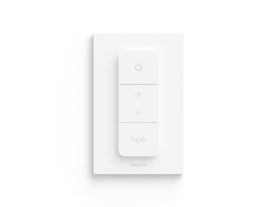
How to Factory Reset a Smart Dimmer: Hue Switch Guide
Performing a factory reset will erase all paired devices, scenes, and settings, giving your dimmer switch a fresh start.
Step-by-step instructions
- Remove the switch from wall Plate: Gently detach the dimmer from its wall mount.
- Flip the switch over: Locate the recessed Setup/Reset button on the back near the battery compartment.
- Press and hold the button: Use a paperclip, SIM tool, or similar object to press the button. Hold for about 10 seconds.
- LED Confirmation: The LED indicator on the front will blink orange, signaling that the reset is complete.
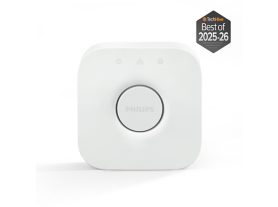
- Reconnect: Open the Philips Hue app to pair the switch with your Hue Bridge or directly via Bluetooth.
The 10-second hold is standard for a full factory reset, even though shorter presses may sometimes work.
Soft reset (Reboot)
If your switch is unresponsive or behaving erratically, a soft reset can refresh the device without deleting your rooms, scenes, or automations.
Steps for Soft Reset
- Press and hold all four buttons simultaneously: On, Dim Up, Dim Down, Off.
- Continue holding for about 5 seconds.
- .Watch the LED indicator flash green and red alternately.
- Release the buttons.
- The switch is now rebooted and ready to use.
Soft reset does not erase paired devices or settings — ideal for troubleshooting minor glitches.
Pro Tips for Smart Dimmer Troubleshooting
Always ensure the battery is installed and functional before attempting a reset.
If using a factory reset, have your Hue Bridge or Bluetooth device ready to quickly reconnect.
Avoid pressing the reset button with too much force; a gentle, steady press is sufficient.
Soft resets can often fix unresponsive buttons or intermittent connectivity issues without losing settings.
Many wireless dimmer issues, such as delayed responses or flickering LEDs, are actually caused by low voltage rather than a software error.
Minimize Interference: If your switch frequently disconnects, ensure it isn't placed directly against large metal surfaces or near high-powered 2.4GHz devices (like routers or microwaves), which can disrupt the wireless signal range.
Final thoughts
Resetting your Hue dimmer switch is a quick and effective way to fix connectivity issues, start fresh, or prepare the switch for a new system.
- Use a factory reset for a complete clean slate.
- Use a soft reset to troubleshoot minor glitches without losing your setup.
With the switch reset, you can reconnect to your Hue Bridge or Bluetooth setup and continue enjoying smart lighting control with ease.