Reimagine the way you watch live sports with Hue Sports Live
Bring the stadium atmosphere right into your home. With Sports Live, your Philips Hue lights don’t just illuminate your space; they respond to every highlight of the match. Kick-offs, goals, red and yellow cards, and more come alive in your room with vibrant lighting effects designed to boost the excitement of every game.
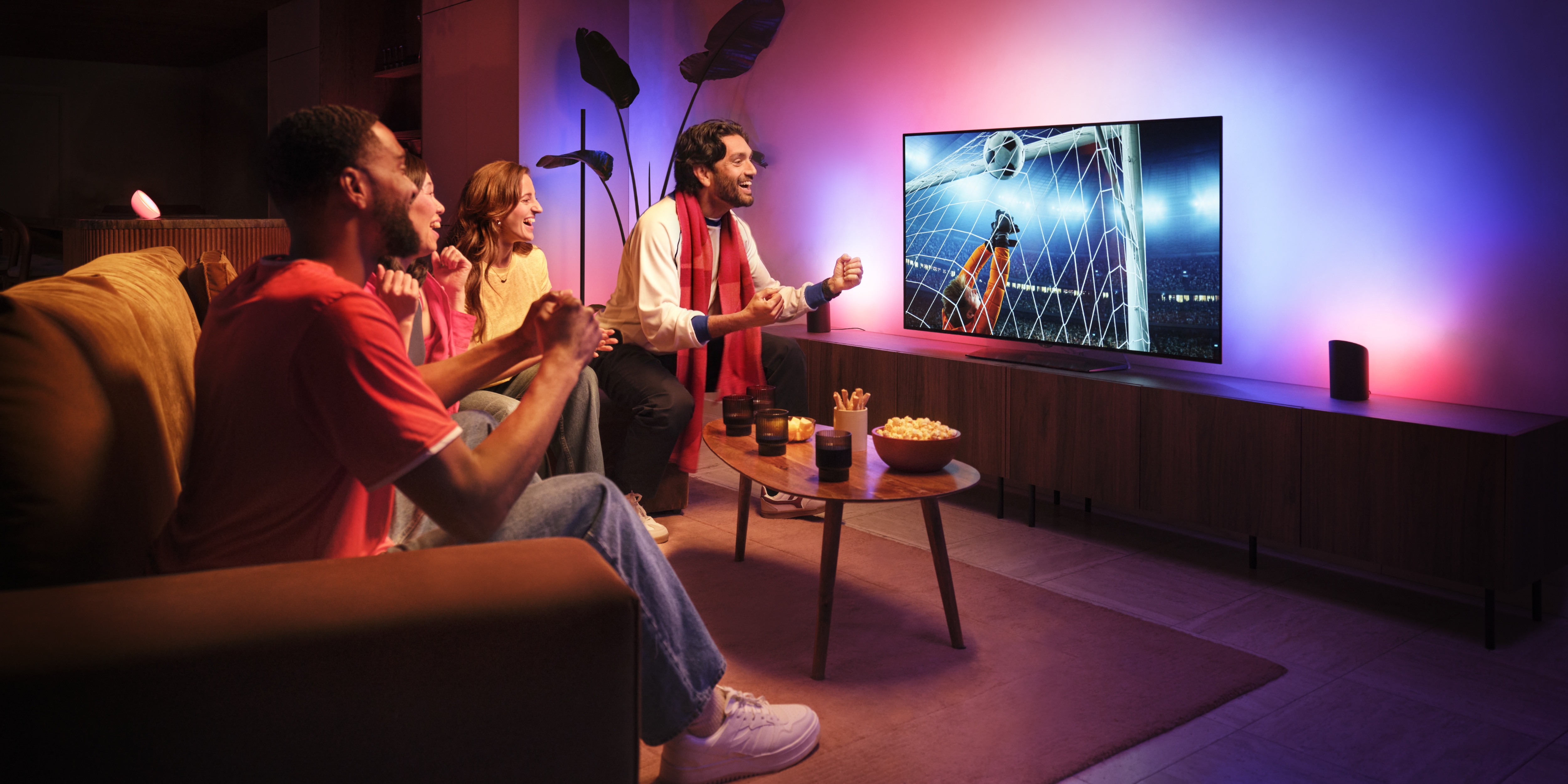
What do you need to start enjoying Sports Live?
To enjoy Sports Live, just make sure you have a Hue Bridge or Hue Bridge Pro along with at least one color-capable Hue light set up in your chosen Room or Zone for match effects. That’s everything you need, nothing else is required!*
1. Get Ready Before the Match Starts
To enjoy the full Sports Live experience, set it up early before kick-off or during the match.
The setup takes about 5–10 minutes, giving you time to choose your room, your lighting style, and your preferred match settings.
Make sure you’re logged into your Hue account, as Sports Live needs to connect to the cloud to deliver real-time effects.
2. Choose the Perfect Room for the Experience
Sports Live works its magic only in Rooms and Zones that contain at least one color-capable Hue light, these lights deliver the dynamic match effects.
- Mixed lighting setups? Totally fine, you don’t need a color only room. White and White ambiance lights are welcome too, but they won’t react to match moments.
3. Activating Sports Live Is Simple
If you're new to Entertainment setups:
- Open the Sync tab in the Hue app.
- Tap Get Started.
- Select Sports Live - Championship 2026 and follow the steps.
If you already use Hue Sync or other entertainment features:
- Open the Sync tab.
- Tap the What button in the bottom left corner.
- Tap the blue "+" button.
- Choose Sports Live - Championship 2026.
During setup you’ll:
- Choose your favorite team (optional, but helps the app tailor match suggestions)
- Select the room that will host your lighting experience
- Pick your preferred match scene (you can change the scene/brightness later during the match)
4. Follow the Matches You Care About
Stay ahead of the game by following the upcoming matches. Once you’re following a match, Sports Live will automatically activate as soon as it begins, so you never miss a moment.
The app won’t send push notifications, but you’ll see match reminders prominently on the Hue app homepage.
5. Watch Your Lights React in Real Time
Once the match starts, your lights transform into a dynamic extension of the match**:
- The match scene that you chose sets the mood
- Special light effects react to your team's highs and lows
- Your room fills with real-time dynamic effects throughout the match
How the lights react to key match moments
- Match started: green blinking for 5 seconds.
- Goal scored: a 5-second animation in the scoring team’s colors.
- Penalty shootout: blue blinking for 5 seconds.
- Yellow card: yellow blinking for 5 seconds.
- Red card: red blinking for 5 seconds.
- Second yellow card (resulting in a red): red-and-yellow blinking for 5 seconds.
- Break ends/ match resume: green blinking for 5 seconds.
- Upon victory: a 15-second animation in the winning team’s colors.
How to keep your lights in sync with the match
When the match begins, open the Sync tab in the app and select Sports Live. Tap Delay, then adjust the timing to match the time shown on your TV.
Note: This option is only available while the match is live.
Smart Behind-the-Scenes Magic
To provide smooth visual effects, Sports Live will temporarily create special scenes in your selected room.
These scenes:
- Are created automatically at the start of the match
- Are removed automatically when the match ends
- Should not be manually deleted or edited, doing so may affect the experience
If you attempt to delete or edit one, the Hue app will warn you, so you’re always in control.
How to Control Sports Live
While the feature is active:
- Accessories such as tap dials or dimmer switches won’t override the effects
- To turn Sports Live off, use:
- The Stop banner on the home screen, or
- The Sync button in the Sync tab.
Pause and Resume Anytime
Need a moment? You can stop Sports Live and resume whenever you're ready.
Your delay settings will be saved, although you may need to fine-tune them again depending on your livestream source.
What You’ll See in the App
Depending on the match timeline, the app adapts to keep things clear:
- No match? You’ll see upcoming games and call to follow
- Match starts soon? A countdown begins
- Match live? You’ll see the current game status and can activate Sports Live instantly
Do you have Hue Sync box? You can enjoy Sports Live and Hue Sync simultaneously by selecting different lights for each.
You can enjoy Sports Live and Hue Sync at the same time, even if some of your lights are in both setups. But Hue Sync takes priority, so Sports Live won't work on lights that are set up for Sync Entertainment Area.
When only some lights overlap, Sports Live can start, but the app will notify you that Hue Sync is prioritized for those shared lights.
By assigning in the app separate lights to each feature, you get the best of both experiences without interruption.
FAQs
Why doesn’t my Room/Zone appear during setup?
It needs at least one color light.
Why aren’t my white lights reacting?
Sports Live effects require color-capable lights. In a Room/Zone with both color-capable and white/white ambiance lights, only your color-capable lights will show Sports Live effects.
My lights suddenly reacted, why?
You likely subscribed to a match that just started.
Why can’t I change scenes with my switch?
Accessories don’t override the Sports Live experience. To change the scene that’s active during Sports Live, go to the Sync tab, select Sports Live, and tap the Scene button to choose a different Scene.
Why do I see scenes named after countries?
These are temporary Sports Live scenes that get removed automatically after the match..
Why can't I see more upcoming matches?
Only planned matches are shown in the Hue app. Future matches will be shown as soon as they are confirmed.
How do I change the lights that show Sports Live effects?
Go to the Sync tab, select sports live, and tap the Where button to change the selected Room/Zone used for Sports live.
*Hue Sports Live is powered by third-party match data; therefore, it may not always be available or work as expected, and the experience may vary at times. Availability and performance cannot be guaranteed.
**Warning: contains flickering lights that may affect people with photosensitive epilepsy or other light sensitivities. Please use caution and stop use immediately if symptoms occur.