How to reset a Hue Bridge?
Resetting your Philips Hue Bridge can solve persistent connection issues and network problems, prepare your system for resale, or help you start fresh after network changes.
This guide covers when to reset, how to do it safely, and what to expect — for both the standard Hue Bridge (V2) and the Hue Bridge Pro.
When should you reset your Hue Bridge?
A factory reset is a powerful troubleshooting step — but it should only be done when necessary because it deletes all saved data (rooms, lights, scenes, and routines).
You should consider a reset in these situations:
- Selling or giving away your Bridge to remove personal settings.
- Moving to a new house or WiFi network to ensure a clean setup.
- Persistent technical issues that can’t be resolved through the app.
- Upgrading to the Hue Bridge Pro and needing a fresh start.
Tip: Try a soft reset or reconnect your Bridge before choosing a full factory reset.
What happens during a factory reset?
When you reset your Bridge, it returns to factory condition, as if it were brand new.
All your personal configurations, linked lights, and automations will be erased.
Afterward, you’ll need to reconnect everything using the Philips Hue app.
Step-by-step guide to resetting your Hue Bridge
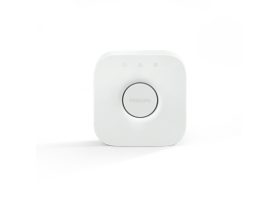
The reset process is the same for both the Hue Bridge (V2) and the Hue Bridge Pro.
Step 1 – prepare the bridge (optional but recommended)
- Before physically resetting, unlink the Bridge from your Hue account. This step is especially helpful if you’re looking for how to remove a bridge from an account before selling it or setting it up again:
- Open the Hue app.
- Go to Settings > Hue Bridges.
- Select your Bridge and tap “Remove”.
This ensures the Bridge doesn’t remain connected to your Philips Hue account after the reset.
Step 2 – Disconnect the network
Unplug the Ethernet cable from the Bridge.
This prevents any network interference during the reset.
Step 3 – Locate the reset button
Flip the Bridge over.
You’ll find a small, recessed reset button on the back — near the label “Restore factory settings.”
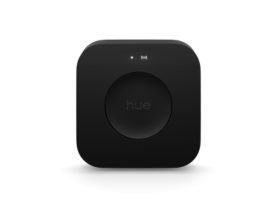
For the Hue Bridge Pro, the button is in the same spot.
Step 4 – Perform the factory reset
Insert a paperclip or SIM eject tool into the reset button hole and hold it for 5 to 10 seconds.
The LED lights on the front will start blinking, confirming the reset process has begun.
Step 5 – Confirm the reset
Wait until the blinking stops.
Once the first three LED indicators are solid blue, the reset is complete, and the Bridge is ready for setup.
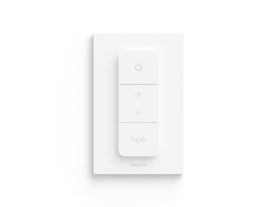
Resetting a Philips Hue dimmer switch
If you also need to reset your Hue dimmer switch, follow these steps:
- Flip the switch over.
- Press and hold the small setup button on the back for about 10 seconds.
- The front LED light will blink, confirming the reset was successful.
You can now re-pair it with your Bridge or another Hue setup. Check the dimmer switch installation.
Important notes for Hue Bridge Pro users
When upgrading from a Hue Bridge (V2) to a Hue Bridge Pro, use the in-app migration tool first to transfer your settings automatically.
Only perform a factory reset on your Pro Bridge if:
- The migration fails, or
- You’re selling or giving away the device.
A reset deletes all migrated data and removes your Hue account from the Bridge.
If you’re resetting your system due to upgrades or network changes, it may help to review the differences between Hue Bridge and Bridge Pro to ensure your setup matches your current needs.
Setting up your Bridge after reset
Once your Bridge is reset:
- Plug it back into your WiFi router with the Ethernet cable.
- Wait for all front LEDs to turn solid blue.
- Open the Philips Hue app and follow the setup guide.
You’ll now have a fresh, clean system ready for configuration.
Common troubleshooting tips
If the reset doesn’t seem to work:
- Make sure you hold the reset button for at least 5 seconds.
- Ensure the power adapter is connected correctly.
- Confirm that the LEDs blink during reset.
- Restart your router before reconnecting.
Final thoughts:
Resetting your Philips Hue Bridge is a simple but essential process when troubleshooting or transferring ownership.
It restores the device to its default state and ensures a clean slate for your next setup.
By following the clear, step-by-step instructions above, you’ll avoid connection errors and maintain full control over your smart lighting system — whether you’re using the Hue Bridge (V2) or the Hue Bridge Pro.
Philips Hue Control products
Hue
Bridge Pro
$98.99