Hue works with Nanoleaf: Everything You Need to Know
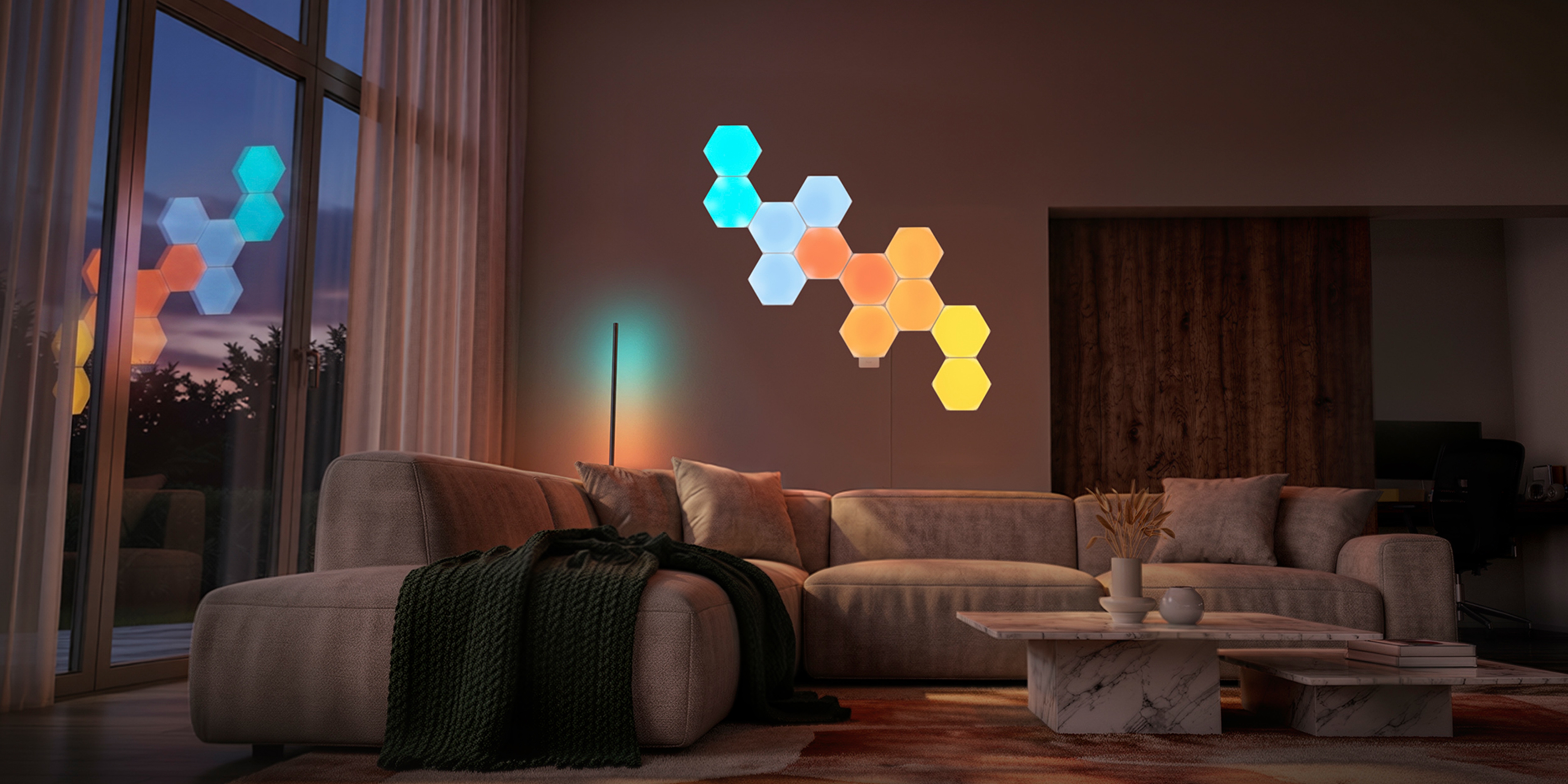
Turn your walls into living light. Nanoleaf Shapes wall panels (Hexagons and Triangles) can be seamlessly added to your Philips Hue system using the Philips Hue wall light module. Once connected, your panels become a natural part of the Hue ecosystem controlled directly from the Philips Hue app, just like your other Hue lights.
This collaboration adds modular, decorative wall lighting to your Hue system, blending Nanoleaf’s design with Philips Hue’s control and automation for expressive and reliable light art.
Why Hue with Nanoleaf?
Hue with Nanoleaf lets you do more than light a room, it lets you express yourself with light:
- Create a statement – Design unique wall patterns that become a visual centrepiece in any room.
- One connected experience – Control Nanoleaf panels alongside your Hue lights for a cohesive ambience.
- Effortless control – Use the Philips Hue app, voice assistants, schedules, and automations to shape your lighting throughout the day.
- Premium design meets smart lighting – Nanoleaf’s modular panels powered by the Hue ecosystem.
Supported Nanoleaf products
The Hue integration supports the following Nanoleaf Shapes products:
- Nanoleaf Shapes Hexagons
- Nanoleaf Shapes Triangles
- Nanoleaf Shapes Mini Triangles
Other Nanoleaf products currently are not supported in the Hue app.
What you’ll need
Before you start, make sure you have:
- Nanoleaf Shapes panels (Hexagons or Triangles)
- Nanoleaf power supply and panels correctly assembled
- Philips Hue wall light module
- Philips Hue app (latest version)
- A Hue Bridge (Recommended to unlock more features), read more here.
Everything you need is already included in the starter set, so you can start creating right away.
About the Philips Hue wall light module
The Philips Hue wall light module is what unlocks the Hue experience for Nanoleaf Shapes.
- Easy setup, mount and connect to your Nanoleaf panels
- Integrate Nanoleaf panels into Hue rooms and zones to have them participate in scenes, and automations
- Enables control via the Hue app, Hue accessories, and voice assistants
Once connected, your Nanoleaf panels behave like a Hue light, ready to be used across your entire smart lighting setup.
Step 1: Install your Nanoleaf panels
a. Plan your layout
Lay out the panels on a flat surface and experiment with shapes and orientation before mounting.
b. Prepare the wall
Clean the wall surface so it’s free of dust or grease. Nanoleaf panels are designed for indoor use only.
c. Mount and connect
Mount the panels using the included mounting plates, connect them with Nanoleaf linkers, and attach the Nanoleaf power supply.
The panels should turn on and display a light pattern.
d. Connect the Philips Hue wall light module
Connect the Philips Hue wall light module to the Nanoleaf Panels using the linker.
Step 2: Add Nanoleaf to the Hue app
- Open the Philips Hue app.
- Go to Settings > Lights > Add light.
- Scan the QR code on the Hue wall light module.
- Follow the on‑screen steps to detect the Philips Hue wall light module.
Once added, Nanoleaf panels appear in the Hue app like any other Hue light, ready to elevate your space.
Design and control with Hue
When connected through Hue, Nanoleaf Shapes panels let you:
- Turn your panels on or off with the rest of your Hue lights
- Adjust brightness smoothly
- Change colors to match your mood
- Add panels to Hue scenes, rooms, zones, schedules, and automations
- Control lighting with the Hue app, voice assistants, and Hue accessories
Within Hue, Nanoleaf panels behave similarly to a gradient striplight, creating flowing color transitions across your wall.
Important limitations to know
The following behaviors are expected by design:
- Nanoleaf scenes, music visualizations, touch gestures, and Nanoleaf effects are not shown or controlled in the Hue app
- If a Hue entertainment sync, automation or alert is triggered (for example, a doorbell or light alarm), Hue will override any active Nanoleaf effect and do not automatically resume the last effect.
Troubleshooting:
These steps cover Hue‑related setup and control only.
Hue wall light module not found in the Hue app
- Make sure the Philips Hue wall light module and the PSU are connected and powered
- Update your Hue app to the latest version.
Hue wall light module unreachable in the Hue app
- Check the Nanoleaf panels are powered by unplugging and plugging them again to power.
- Use the reconnect flow in the Hue app.
- Remove the Philips Hue wall light module from the Hue app and add it again.
FAQs
Do I need a Hue Bridge to use Nanoleaf with Hue?
No. A Philips Hue Bridge is not required to bring Nanoleaf panels into the Hue ecosystem. However, adding a Bridge will unlock more features, read more here.
Which Nanoleaf products are supported?
Currently, only hexagons, triangles, and mini triangles are supported.
How many Nanoleaf panels can I connect to one PSU?
For this information, please refer to the Nanoleaf's PSU calculator.
How many Nanoleaf panels can be supported by the Hue wall light module?
Up to 100 panels are supported and can be controlled in the Hue app.
Can I use the Nanoleaf panels as part of my Entertainment area?
Yes, it is supported; however, we don’t recommend syncing Nanoleaf panels to your screen-based content as depending on the layout, the experience may not be fully optimized for syncing to the content on your screen. They do make a great addition to ambiance creation in your entertainment spaces though.
Why don’t I see Nanoleaf scenes in the Hue app?
Nanoleaf scenes and effects are controlled through the Nanoleaf app and are not available in Hue.
Where do I get help with Nanoleaf hardware or panel issues?
For Nanoleaf troubleshooting and support, please visit https://support.nanoleaf.me.
Need more help?
If you’re having trouble adding Nanoleaf to the Hue app or using it within your Hue system, visit Philips Hue Support for further assistance.
For Nanoleaf‑specific hardware topics or Nanoleaf‑only features, always contact Nanoleaf Support.