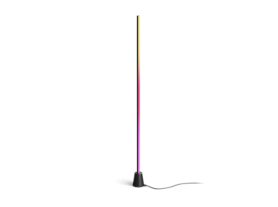
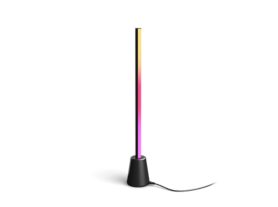
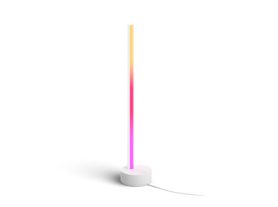
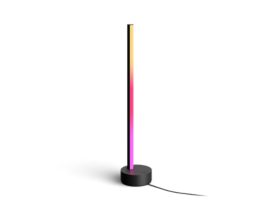
Person gaming at a desk with colourful smart lights that sync with a PC, enhancing the immersive entertainment experience.

Sync lights to PC for a truly immersive gaming experience

5 September 2026

Imagine the lights in your room reacting to every neon-lit street in a cyberpunk city or every subtle shadow in a stealth mission. When you sync lights to PC set-ups, you aren't just looking at a screen – you’re stepping inside the world of the game. Whether you're a casual player or a competitive pro, transforming your surroundings into a dynamic extension of your computer monitor creates an atmosphere that generic RGB strips simply cannot match. 

The generic solution vs. professional synchronisation

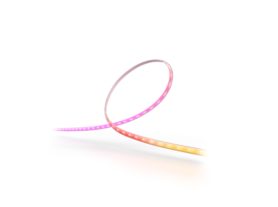
Most users start their journey with simple 'bias lighting' – static LED strips like the Philips Hue strip lights behind a monitor to reduce eye strain. However, most gamers looking for gaming sync lights want something more: real-time reactivity. 

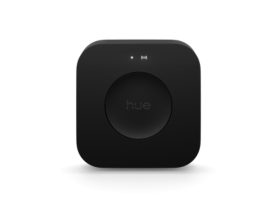
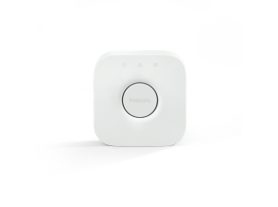
Generic Wi-Fi-based lights often experience some lag, where the colours change a fraction of a second after the action. To sync lights to PC effectively, you need a system that minimises delay. Philips Hue uses the Zigbee protocol via the Hue Bridge and Hue Bridge Pro, which handles communication locally through a mesh network. This means that Hue lights communicate directly between each other, creating an interconnected web of connectivity instead of each light connecting directly to Wi-Fi. This ensures your lights react instantly to on-screen explosions or atmospheric shifts. 

Method 1: The Philips Hue Sync desktop app

For most PC gamers, the easiest way to sync lights to PC is through the free desktop software.

For PC gamers: Hue Sync desktop app

How to sync lights to PC with Philips Hue

To achieve professional-grade gaming sync lights, you need a system that minimises lag and delivers instant light response. The Philips Hue ecosystem uses a dedicated Bridge and the Zigbee protocol, ensuring that your lights react instantly without slowing down your home Wi-Fi network.

Getting started with the Hue Sync desktop app

The secret weapon for PC gamers is the Philips Hue Sync desktop app. Available for both Windows and macOS, this free tool analyses your screen’s content and translates it into a 'light script' for your room.

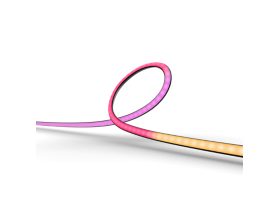
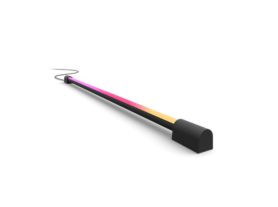
  1. Hardware set-up: install your colour-capable lights, such as the Hue Play gradient strip light behind your monitor, or a Hue Play bar around the desk.
  2. The Hue Bridge: Ensure your Bridge or Bridge Pro smart hub is connected to your router — or wirelessly in the case of the Bridge Pro. This acts as the processor for your light sync commands.
  3. Entertainment areas: in the Philips Hue mobile app, create an 'Entertainment area'. This tells the system exactly where each light sits in 3D space relative to your chair.
  4. Launch the app: open the desktop app, choose your area and hit 'Start light sync'.

Explore the Hue lighting controls and LED strip lights collection.


Method 2: Philips Hue Play HDMI Sync Boxes

While the Hue Sync desktop app is a powerful solution for PC gaming, some setups – especially gaming PCs connected to large monitors, TVs or dedicated entertainment spaces – may benefit from a Play HDMI Sync Box.

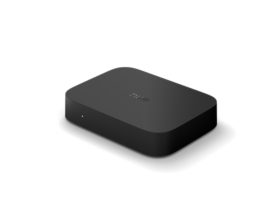
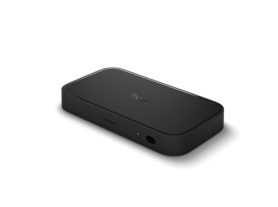
Philips Hue offers two HDMI Sync Box options. The Play HDMI Sync Box 4K supports smooth 4K visuals at up to 60 Hz refresh rate, making it ideal for everyday gaming. For enthusiasts running the latest graphics cards and displays, the Play HDMI Sync Box 8K supports HDMI 2.1, 4K at up to 120 Hz and 8K at 60 Hz for next-generation gaming.


A rectangular HDMI sync box is placed on a wooden desk beneath a monitor, synchronising ambient coloured lighting with on-screen content.

Why choose a sync box for PC gaming?

Dedicated performance

Unlike software-based syncing, a Play HDMI Sync Box analyses the HDMI signal directly, so synchronisation happens independently of your PC's processing resources.

Choose the right performance level

The Play HDMI Sync Box 4K supports 4K content at up to 60 Hz, making it a great choice for most PC gamers and entertainment setups. For higher resolutions and refresh rates, the Play HDMI Sync Box 8K supports HDMI 2.1, 4K at up to 120 Hz and 8K at 60 Hz.

Great for gaming and entertainment

If you use your gaming PC for movies, streaming services and other entertainment, a sync box provides seamless lighting synchronisation across compatible HDMI-connected content.

Easy integration with larger setups

HDMI sync boxes work particularly well when your gaming PC is connected to a TV or forms part of a broader entertainment system with multiple connected devices.

Check out other TV lighting and entertainment ideas.

Flexible LED strip light attached to the back of a monitor displays gradient colours, illuminating the wall and desk in a gaming set-up.

Which gaming sync solution is best for you? Do you need a sync box for your PC?

Not necessarily. For most PC gamers, the Hue Sync desktop app remains the simplest and most direct way to sync Hue lights with games, music and on-screen content.

However, if your PC is connected to a large TV, forms part of a dedicated entertainment setup, or you prefer a hardware-based synchronisation solution, a Play HDMI Sync Box can be a great alternative. The Play HDMI Sync Box 4K is ideal for most gaming and streaming setups, while the Play HDMI Sync Box 8K is best suited to enthusiasts looking for support for 4K at up to 120 Hz and the latest HDMI 2.1 gaming features.

Hue Sync desktop app

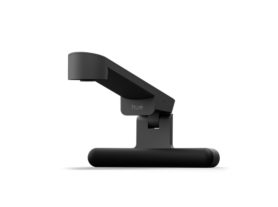
Play HDMI sync box 4K

Play HDMI sync box 8K

How it synchronises

Synchronises directly with content on your PC
Analyses HDMI-connected content in real time

Maximum supported refresh rate

Depends on your PC and display
4K at 60 Hz
8K at 60 Hz, 4K at 120 Hz

Uses PC processing power

Supports PC gaming

Yes
Yes*
Yes*

Supports console gaming

Works with TVs

Works with streaming devices

Works with Corsair iCUE and Razer Chroma

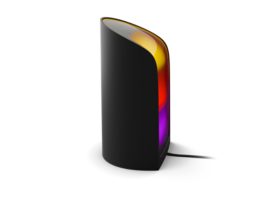
Explore the Hue table lamps


Advanced immersion: Beyond the monitor

To reach the next level of gaming room lighting, you can integrate your lights with other gaming ecosystems.

Integration with Razer Chroma and Corsair iCUE

Philips Hue is designed to play well with your existing gear. You can sync your room lights with your Razer Chroma or Corsair iCUE-enabled mouse and keyboard. This creates a unified lighting "organism" where your peripherals and lights all react to in-game triggers — like flashing red when your health is low. 

Gaming room set-up with smart lighting casting purple and blue hues on a wall behind a desk, monitor and vertical floor lamp.

Fine-tuning your setup for performance

The Hue Sync smart lighting system isn't just "set it and forget it." You can customise the behaviour to suit your playstyle via the app:

  • Subtle vs. Intense: For competitive shooters, use "Intense" for immediate feedback. For cinematic RPGs, "Subtle" provides a smoother, more relaxing transition.
  • Brightness control: You can set the lights to dim automatically when the app starts, ensuring your screen remains the focal point.
  • Audio syncing: If you are taking a break from gaming, you can switch to music mode to sync your lights with music, turning your desk into a personal light show.

The benefits of bias lighting for gamers

Beyond the 'cool factor', learning how to sync lights to a PC has tangible benefits for your health and performance:

  1. Reduced eye strain: By illuminating the wall behind your monitor, you reduce the harsh contrast between a bright screen and a dark room.
  2. Increased focus: Ambient lighting can help ground you in your physical space while expanding your digital one, helping you stay in "the zone" longer.
  3. Atmospheric gaming: It adds a layer of "physical feedback" that traditional displays simply cannot provide.

Does syncing lights affect PC performance?

Minimally. The Hue Sync app is highly optimised, and the Bridge handles communication with the lights via Zigbee, meaning your CPU is free to focus on your frames.

Superior immersion: Chromasync™ and RGBICWW Gradient Effects

For gamers looking to push their setup beyond basic lighting, the next generation of synchronisation technology offers a significant leap in visual quality:

  • Chromasync™ precision blending: new to the Philips Hue Flux and OmniGlow series, Chromasync™ is an advanced colour-mixing technology. Unlike standard strips that struggle with muddy transitions, Chromasync™ uses a high-performance chip to ensure that gradients are precise and ultra-smooth. This results in a 'light wash' that feels like a natural extension of your monitor.
  • RGBICWW technology: Most high-end Hue strips now utilise RGBICWW (Red, Green, Blue, Independent Control, Warm White and Cold White). This is a major differentiator for two reasons:
    •  Independent control (IC): this allows the strip to display multiple different colours at the same time along a single strip, matching the specific zones of your screen (e.g. fire on the bottom left and blue sky on the top right).
    • Dedicated white LEDs (WW): by including dedicated warm and cold white LEDs, these strips can produce 'Authentic White' light for productivity or reading, which generic RGB strips cannot replicate without looking 'blueish' or tinted.
  • OmniGlow diffusion: In addition to the internal tech, the hardware design utilises a diffused casing to eliminate the "beaded" look common in cheaper strips. This ensures the RGBICWW gradient effects blend seamlessly against your wall, creating a soft, cinematic glow.

Pro-Tip: If you are integrating these into a current setup, make sure to update your Hue Bridge firmware to the latest version to fully unlock the Chromasync™ dynamic effects.